¶ Dashboard & Analytics
The Dashboard provides a real-time overview of your organization's security posture based on phishing campaign results. Access it from the Dashboard entry in the left sidebar (shown above Phishing Campaigns).
¶ Security Score
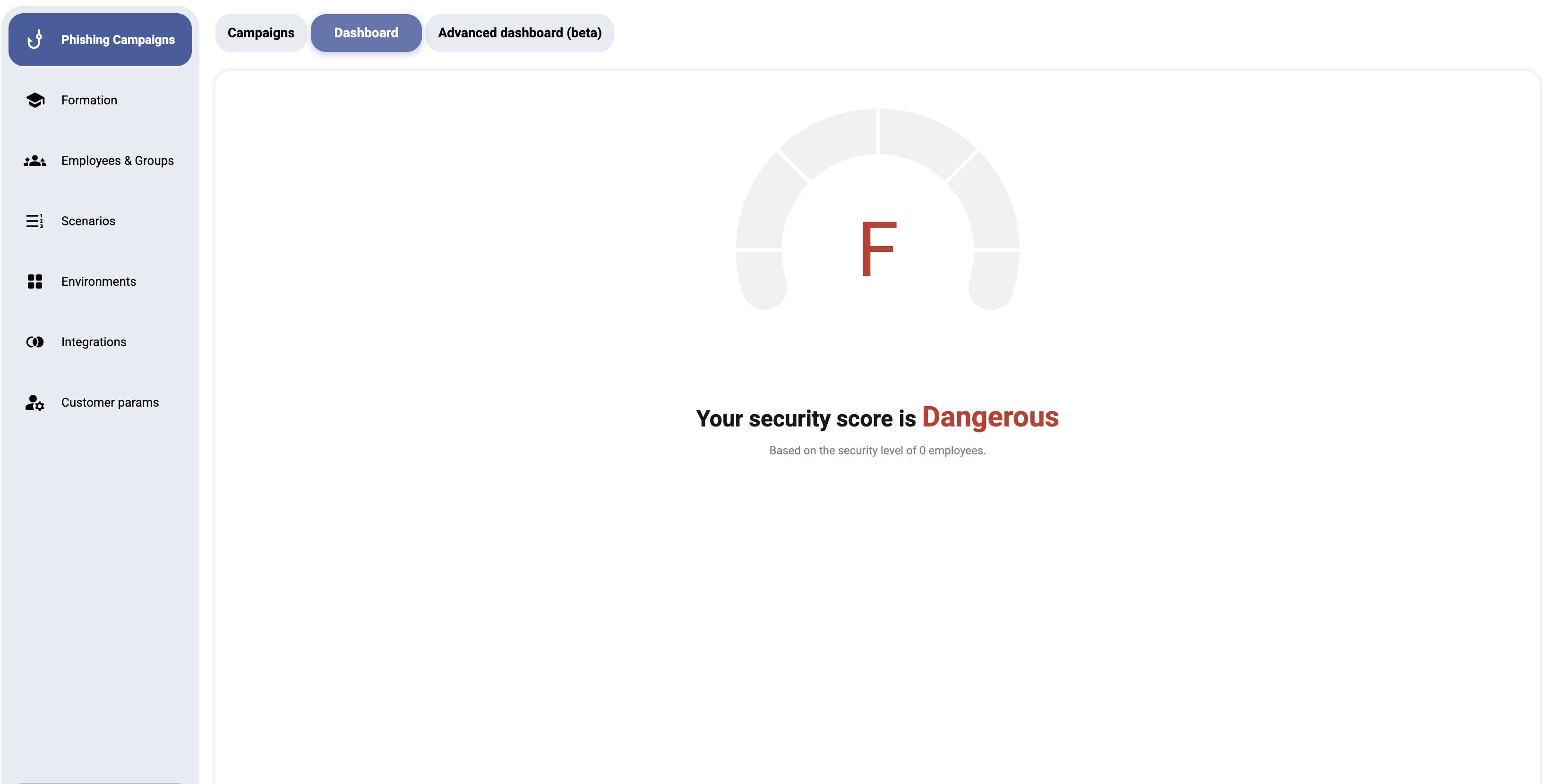
The centerpiece of the dashboard is the Security Score — a letter grade from A (excellent) to F (dangerous) displayed in a large gauge widget.
| Grade | Label | Meaning |
|---|---|---|
| A | Excellent | Employees demonstrate strong phishing awareness |
| B | Good | Most employees identify phishing attempts correctly |
| C | Average | Some employees are vulnerable — training recommended |
| D | Poor | Significant vulnerability — immediate action needed |
| F | Dangerous | Critical risk — most employees fall for phishing simulations |
The score is calculated based on:
- The number of employees assessed
- Their aggregate behavior across all campaigns (clicks, credential submissions, reports)
Below the gauge, you'll see:
"Your security score is [Grade]"
"Based on the security level of X employees."
Note: If no campaigns have been run, the dashboard displays: "No campaigns: Please create a campaign."
¶ Key Metrics
When campaigns have been completed, the dashboard shows:
- Total campaigns — number of campaigns run
- Success rate — percentage of employees who did not fall for the simulation
- Click rate — percentage who clicked the phishing link
- Credential submission rate — percentage who entered credentials on the landing page
- Report rate — percentage who reported the email as suspicious
- At-risk employees — individuals who repeatedly fail simulations
¶ Advanced Dashboard Phishing + Training
Open the Advanced Dashboard Phishing + Training tab (named Advanced Dashboard Phishing when the customer has no connected Moodle) for an embedded analytics report powered by an integrated BI tool. It gathers every phishing and training chart on one page.
This dashboard provides:
- Interactive charts and graphs — drill down into campaign performance over time
- Filtering — filter by date range, campaign, department, or group to get a precise view of your data"
- Trend analysis — track security awareness improvement across campaigns
- Export options — accessible via the ⋯ menu in the top-right corner of the embedded dashboard
Tip: Use the ⋯ menu in the top-right corner to export the report as PDF or PowerPoint.
¶ Using the Dashboard Effectively
- Monitor trends — look for improvement over successive campaigns
- Identify repeat offenders — employees who consistently click should receive additional training
- Benchmark departments — compare security scores across different groups
- Report to leadership — use the dashboard data to justify security awareness investments
- Set goals — aim to improve your letter grade each quarter